
|
|
|
|
Blade Pro Lesson SevenLesson 7, already? Yes, it's true.... Light Sources and Blend (Glue) Modes
Now we'll cover the light source controls and
the blend mode button.... and maybe make something fun too!
In this lesson, we will refer to buttons #23, #24, #27, #28, #5, #31 and #32, and the letters... no wait, that's another show... smile.
|
|
|
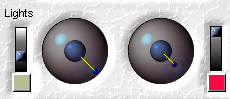
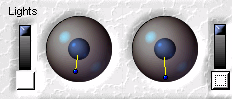
Light Source controls (#23 and #24) These two controls affect the light reflected onto your image. Buttons #27 and #28 control the color of the light.
To change the direction of the light, grab one of the tiny blue balls with your mouse and move it within the gray circle. Placing the tiny ball in the middle of the larger blue ball will result in the light being reflected from directly in front of the image, as if the light were between the viewer ( that's YOU ) and the image. Conventional wisdom (is there such a thing as UNconventional wisdom, if so I'll have some of that!) says that the light probably comes from above, like the sun. So if you keep the light direction in the upper half of the gray circles, that is the most natural setting. But I say, WHO cares about NATURAL, after all we are simulating stuff in the first place! In addition to the lights direction controls, Super Blade Pro adds light colour chips and sliders (Sliders #27 and #28.) Moving the sliders upward add more of the chosen light colour to the preset effect. This is the default setting for the basic gold preset that you must be totally sick of by now.
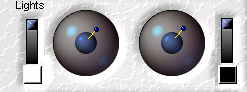
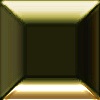
Same image, same preset, the light controls have been moved to the bottom and the second light color changed to white. The bottom edge of the gold button now has a large white highlight area.
In some cases, changing the light direction can produce a totally different look, especially on highly textured images. Button #5... The Glue Modes As much as I would like to tell you how
the Glue Modes Zoom and Auto Preview Controls The check box on #31 is an Auto-Preview enable, when this is checked, your preset changes will update in the Preview panel (#7.) You can click on the + or - signs on either side of the Zoom indicator (#32) to change the zoom factor in the Preview panel.
Some additional controls added to Super Blade Pro! Super Blade Pro adds some
additional controls. Let's begin with button #33 Button #34
|
||
|
|
|
|
||
|
|
|
|
Please join us at LVS Online for the best in online education. Filter Frenzy classes focus on Photoshop-compatible plugins. Xara X is taught by Ron Lacey and myself, and the rest of the 45+ classes are terrific, as well. We add new classes every session, so if we don't yet offer a class in something you want, keep watching, or better yet, email a suggestion to questions@lvsonline.com!

© Sally Beacham and Dizteq.com 1999-2002
)


 work, I think if I SHOW you the differences, it will probably be
more meaningful ( and that way I sort of get out of giving you a highly
technical gobbledygook explanation, too!) Click
work, I think if I SHOW you the differences, it will probably be
more meaningful ( and that way I sort of get out of giving you a highly
technical gobbledygook explanation, too!) Click  ,
which is a plain bevel setting. Clicking this button
will override any other settings, and produce a clear bevel
over your original image.
,
which is a plain bevel setting. Clicking this button
will override any other settings, and produce a clear bevel
over your original image. is
a one-level UnDo button (if you lose your pretty preset
because you hit the dice one too many times, you can go back
now, but just ONE level.) Button #35
is
a one-level UnDo button (if you lose your pretty preset
because you hit the dice one too many times, you can go back
now, but just ONE level.) Button #35 is a Random Seed button, which will change the detail
of the blotch slider #45.)
is a Random Seed button, which will change the detail
of the blotch slider #45.) controls
whether the rain is opaque or transparent..
controls
whether the rain is opaque or transparent..