DS
 

Tape page 2


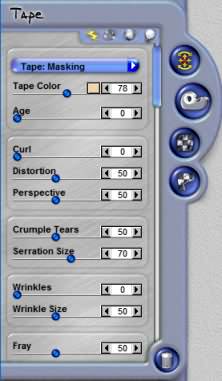
Tape Type
Use this menu to select the type of tape you want. The currently selected tape will be changed into the tape type that you select. Tape tears and frays you have added to the effect will remain on the effect even if you change the type of tape. Tape types include Masking Tape, Transparent Tape, Sports Tape and Duct Tape.

Tape Color
This slider adjusts the color and opacity of the tape. Click on the color box change the color of the tape. Reduce the slider values to make the tape semi-transparent.

Tape Age
This slider adds a yellow aged look to the currently selected tape effect. If you have changed the default color of the tape using the Tape Color control, Tape Age may not yield the desired aged look.

Curl
This slider gives the ends of the tape a shaded curling effect. This control is best used at lower settings.

Distortion
This slider adjusts Tape strips that have a curl, wrinkle or fray setting so that it is raised from the normally flat surface. Basically, the tapes length is being pulled in to provide the bends in height based on the curl, wrinkle and fray settings currently in use on the tape strip.

 
Tape Controls

Perspective
This slider bends the strip of tape to provide added dimension.

Crumple Tears
This slider determines how many crumple folds are placed along the edge of the tape when you use the Tear Tape tool. You must have created a tear on the currently selected tape prior to using this control or you will see no result.

Serration Size
This slider adjusts the size of the serrated cuts along the ends of the tape effect you currently have selected. If you have removed the serrated ends of the tape by using the tear tool, this control will not function.

Wrinkles
This slider is used to make your tape surface wrinkled and wavy. This feature is best used at lower settings for optimal results.Use this slider in conjunction with the Wrinkle Size control.

Wrinkle Size
This slider adjusts how large the wrinkles that are applied to the image are. Use this slider in conjunction with the Wrinkles control.

Fray
This slider works in conjunction with the Fray Tape Edge tool. Higher settings create a stronger perception of depth for the fray. This slider will adjust all frays on the currently selected tape effect.

Overlap Opacity
This slider will control the opacity of a strip of tape when it is placed over another strip of tape or along the edge or corner of an image it shows lines where it overlaps the edges of what is under it. The Overlap Opacity control defines how strongly this overlap is shown.

Overlay Softness
This slider makes any ove/pbr>

Variation
Variation controls the random generation of settings used to create each effect's distinctive patterns. Changing the Variation value for the effect will provide a unique look each time the setting is changed. In Tape the Variation setting is used to generate unique patterns for Surface Dirt, Curl, Crumple, Wrinkles, Fray and the Procedural Surface Textures such as Dimpled and Striated.

 
Back to Page 1HomeTutorials
 

By Joe Cilinceon, © July 28, 2002