DS
 

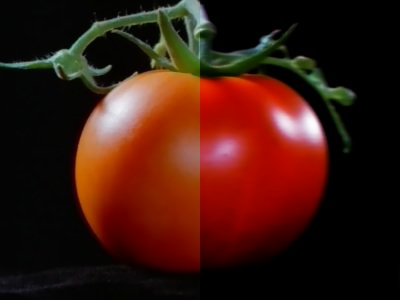
The Photo Tone plug-in is part of the DreamSuite 1 Set. This plug-in applies creative mottled glows, blurs, color blends, inner and outer halo areas to images to form a romantic "subject-focused" look.

 
Photo Tone Example
 

Color Mix
This slider control increases or decreases how much of the tone color is mixed in with the effect. In most cases, a lower setting is preferred. Try setting different tone colors and opacity settings and then mixing them in with this control.

Halo Softness
This slider control spreads the halo out by softening it. Use this control to blend the halo gently into the background.

Halo Intensity
This slider control adjusts the dark halo that surrounds the selected area. Adjusting this slider will increase or decrease the amount that is applied around the selection.

Mottle Background
This slider control generates a mottled pattern on the background behind the halo. In many images this will help to break up the evenness of the background behind the halo and the toned image.

Photo Tone Control

Halo Color
This slider control and color picker sets both the tone color and opacity that is applied across the entire effect. Adjust Color Mix slider to increase or decrease the amount of Tone and Opacity that is applied with the image and halo in this effect. Images with flesh tones generally work best with mid to dark reds to form a warmer tone...blue colors work well for colder tones.

Image Blend
This slider blends the background image into the halo and edges of the toned image.

Image Blur
This slider softens the background image detail by blurring it. This is useful for de focusing the background and drawing attention to the selected foreground elements.

Glow Inward
This slider allows the halo to blend inward into the foreground image you have selected.

Soften Mask
This slider is used to soften the selection mask. Softening the selection mask blends the foreground and background boundaries. This is also useful for reducing visual artifacts that can be seen from an imperfect selection.

Ghost Hightlight
This slider works with the Ghost Amount slider to create a soft focus, ghosted photo effect. Increasing this slider will bring out dramatic colors and detail found in images. Try different combinations of settings with the Ghost Amount, Image Contrast, Soften Mask and Glow Inward controls.

Ghost Amount
This slider works with the Ghost Highlight slider to create a soft focus, ghosted photo effect. The higher the settings, the stronger the ghosting effect on the image as if a slower exposure time where used when taking the photo.

Image Contrast
This slider will increase the dark and light contrast values of the image. In some photographs, the increase of contrast combined with the Photo Tone effect produces a visually dramatic effect.

Shield Transparency
When this is checked, it will only apply to the pixels in the image and not the transparent areas. Checking this will change how DreamSuite applies the effect around a selection or on an artwork layer.

Variation
This is controling the random generator of settings used to create each effect's distinctive patterns. In Photo Tone, the Variations setting is used to generate unique patterns of light for the Mottle and Halo.

 
TutorialsHome
 

By Joe Cilinceon, © July 27, 2002