|
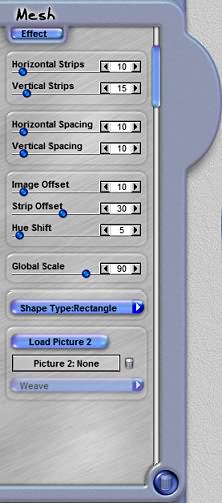
Image Offset
The slider control allows you to offset the image inside all the strips on a global basis. The higher the
setting on this control the more the image is offset. You can manually shift an image's position by using
the Transform Photo tool.
Image Rotation
This slider control allows you to offset the image inside the strips by slightly rotating the images in each
strip, so a rotational offset is achieved.
Hue Shift Two
This slider control applies a subtle shift of color value for each photo in each strip. This shift helps to
differentiate the strips and simulate how a real photo cut into strips may look if different prints from
different printers were cut up and overlapped.
Global Scale
This slider control defines the size of the effect as it is applied to the image. Use this control to scale
the size of the effect on a constrained basis.
Load Picture Two
This button allows you to load a photo using the Select Image Dialog window. The photo will be placed in the
strip pattern as a second photo weaved with the first one.
Picture Two Name
This field displays the name of the photo you have loaded using the Picture Two button.
Delete Picture Two
Is the button just to the right of the Picture Two Name Field. Pressing this button, will remove the Picture
Two from the effect.
Weave Type
This menu allows you to define how Picture Two and the original image are overlapped together.
|