DS
 

Metal Mixer page 2.


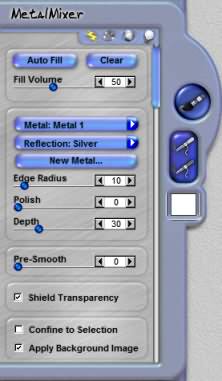
Auto Fill
Pressing this will automatically mix together Metal 1 and Metal 2.

Clear
This button removes the Auto Mixed metals and lets you start again fresh.

Fill Volumn
This slider controls how much of Metal 2 will be placed inside Metal 1 when you use the Auto Fill option.

Metal 1
This menu allows you to select the current metal the controls work with. All changes you make to the Surface controls will adjust the currently selected metal attribues and will automatically update the effect.

 
Metal Mixer Control

Reflection
This menu allows you to select different image reflection maps that for the color and reflective qualities of the depth effect. You may load a custom map of your own desight (try any texture image) by choosing Custom Map from this menu.

New Metal
This allows you to have as many different surfaces as you want. Click this button to create a new metal that will appear under the Metal Menu.

Edge Radius
This slider adjusts the angle and sharpness of the bevel edge. Use this control with Polish Curvature and Bevel Depth sliders to refine the look of the depth.

Polish Curvature
This slider rounds and smooths the angles of the bevel making them softer with gentle curves versus sharp angles. Use this control with Edge Radius and Bevel Depth slider to refine the look of depth.

Depth
This slider determines the height of the bevel. Increasing the value of this makes the bevel appear to have more height and depth. Use this control with the Edge Radius and Polish Curvature sliders to refine the look of depth.

Pre-Smooth
This slider mask smooths the edges of the selection mask. The quality of the selection mask you are using can impact the results you achieve from the effect.

Shield Transparency
When checked the effect will only apply to the pixels on a layer and not the transparent areas. This changes how Dreamsuite applies the effect around the image.

Confine to Selection
When checked the effect will only apply to the selected areas. This option is only available if you have a selection.

Apply Background Image
When this is checked the background image behind the selection will show up in the preview and will also apply as part of the effect.

 
Back to Page 1HomeTutorials
 

By Joe Cilinceon, © July 26, 2002