DS
 

Instamatic page 2


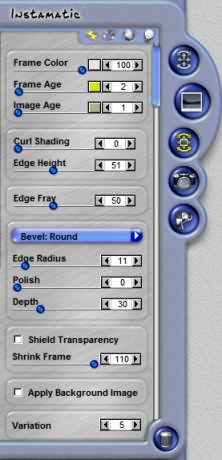
Frame Color
This slider and color picker are used to define the color and how strongly this is applied to the frame. The underlying color of the frame is always white. As you move the slider to the left, the color becomes transparent and blends into the white, for a soft tint.

Frame Age
This slider applies an aged tint on the frame to simulate what an older frame may look like.

Image Age
This slider applies an aged tint on the image to simulate the photo having aged and yellowed.

Curl Shading
This slider combines intelligent shading and depth shadowing to provide the illusion of depth.

 
Instamatic Controls

Edge Height
This slider defined the height of the border lip along the area where the edge meets the border. This is a subtle visual effect.

Edge Fray
This slider works in conjunction with the Edge Fray Tool. The next Edge Fray you create using the Edge Fray tool, will use the settings from this slider. If you have the Global Slider Changes check box on, this slider will globally adjust all the Fray area you have created on the currently selected effect.

Bevel Type Menu
They menu defined the type of bevel edging and depth curvature that is applied to the effect.

Edge Radius
This slider adjusts the angle and sharpness of the bevel edge. Use this control with Polish Curvature and Bevel Depth slider to refine the look of the depth effect.

Polish Curvature
This slider rounds and smooths the angles of the bevel making them softer and gentle curves versus sharp angles. Use this control with the Edge Radius and Bevel Depth sliders to refine the look of the depth effect.

Depth
This slider controls changes the height of the bevel. Stronger settings make the bevel appear to have more height and depth. Use this control with the Edge Radius and Polish Curvature slider to refine the look of depth.

Shield Transparency
When checked, this will only apply the effects to pixels on the layer and will not effect transparent areas. Checking this option will change the way DreamSuite applies the effect around selection or artwork on a layer.

Shrink Frame
This slider adjusts the size of the frame in a concentric manner.

Apply Background Image
When this box is checked, the background image behind the selection will show up in the preview and will also apply as part of the effect.

Variation
This controls the random generation settings used to create each effect's distinctive patterns. This will change the look each time it is changed. In Instamatic, the Variations setting is used to generate unique patterns for Edge Fray, Surface Dirt, Curl Shading, the procedural Textures, such as Dimpled and Striated, and the procedural Bevels such as Hammered.

 
Back to Page 1HomeTutorials
 

By Joe Cilinceon, © July 25, 2002