DS
 

The Hot Stamp effect is part of the DreamSuite 1 Set. This effect allows you to add and blend glowing colors and gradients inside and around your type and graphics.

 
Hot Stamp Example
 

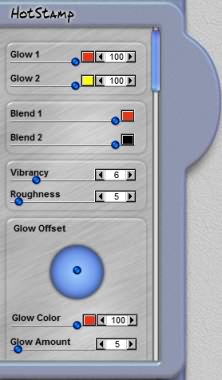
Glow 1
This control adjusts the first color you see outside the selection; and of the 2 colors, this one is inside the color set in Glow 2. You can adjust the color, opacity and amount of the glow distance that is created by this color.

Glow 2
This control adjusts the second color you see outside the selection; and of the 2 colors, this one is outside the color set in Glow 1. You can adjust the color, opacity and amount of the glow distance that is created by this color.

Blend 1
This controls the color and the opacity of the blend color at the top of the image.

Blend 2
This controls the color and the opacity of the blend color at the bottom of the image.

Hot Stamp Controls

Vibrancy
This slider increases the distance and intensity of the glow that is generated by both the inner and outer colors around Hot Stamp selection.

Roughness
This slider will roughen the edges of the selection.

Glow Direction
Adjust the point on this sphere to define the offset direction of the glow. This control works in conjunction with the Glow Strength slider to determine how far out and in what direction the glow occurs.

Glow Color and Opacity
This control defines the color and opacity of the glow. Reducing the slider will reduce the opacity of the glow making it more transparent. Clicking on the color button will activate the color picker so you may change the glow color.

Glow Amount
This slider adjusts the amount of glow you see around the effect. The higher the value, the farther the glow extends from the effect.

Glow Softness
This slider adjusts how soft the glow effect will appear. The softer the effect the more spread out, smooth and feathered it becomes.

Shield Transparency
When this is checked, the effect will only apply to the pixels on the layer and will not affect the transparent areas. Checking this option will change how DreamSuite applies the effect around a selection or on artwork on a layer.

Variation
This control will change combinations of some of the effect settings you have applied so as to provide different variations in subtle degrees. At times no change will be apparent as certain controls may be set to off or lower settings making visible changes negligible.

 
TutorialsHome
 

By Joe Cilinceon, © July 25, 2002