DS
 

Gel page 2.


Edge Radius
This slider adjusts the angle and sharpness of the bevel edge. Use this control with Polish Curvature and Bevel Depth sliders to refine the look of the depth effect.

Depth
This slider changes the height of the bevel. Stronger settings make the bevel appear to have more height and depth. Use this control with the Edge Radius and Polish Curvature sliders to refine the look of the depth effect.

Gel Color
These controls allow you to set the color and opacity of the gel effect. Reduce the slider to reduce the opacity of the gel. Click on the color box to gain access to the color picker.

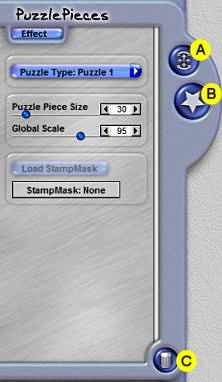
Puzzle Pieces - Layout Mode Control

Refractive
This slider is used to pull the image into the depth to refract it inside the bevel shape. Typically lower settings with this slider yield the best results.

Polish Curvature
This slider rounds and smoothes the angles of the bevel, making them softer with gentle curves versus sharp angles. Use this control with the Edge Radius and Bevel Depth sliders to refine the look of the depth effect.

Transparent Image Checkbox
If this is checked, it will treat the artwork as if it were a transparent selection. This is useful if you have type on a layer and desire to use the shape of the type, but avoid using the color (black type, for example, will influence the color of the gel that is on top of it).

Soften Mask Checkbox
When this option is checked, the shape of the artwork is slightly softened. This will give the bevel shape a softer appearance around the edges.

Shield Transparency
When this option is checked, the effect will only apply to the pixels on the layer and will not affect the transparent areas. Checking this option will change how DreamSuite applies the effect around a selection or on artwork on a layer.

Apply Background Image
When this option is checked, the background image behind the selection will show up in the preview and will also apply as part of the effect.

 
Back to Page 1HomeTutorials
 

By Joe Cilinceon, © July 30, 2002