DS
 

The Dimension X effect is part of the DreamSuite 1 Set. It is a powerful depth effect. It allows you to add realistic depth bevels, reflective lighting and surface texture maps to graphics and type.

 
Dimension X Example
 

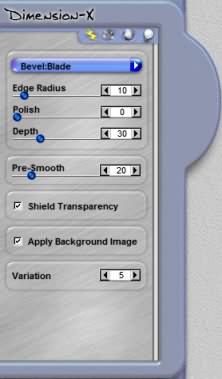
Bevel Type
This menu allows you to change the type of bevel edging and depth curvature.

Edge Radius
This slider control adjusts the angle and sharpness of the bevel edge. Use this with Polish and Bevel Depth slider to refine the look of the depth effect.

Chisel Surface Control

Polish
This slider rounds and smoothes the angles of the bevel making them softer. Use this control with Edge Radius and Bevel Depth to refine the look of depth.

Depth
This slider changes the height of the bevel. Stronger settings make the bevel appear to have more height. Use this with Edge Radius and Polish Curvature to refine the look.

Pre-Smooth
This mask slider smoothes the edges of the selection mask. The quality of the selection mask you use can affect the output effect.

Shield Transparency
When this box is checked, the effect will only apply to the pixels on the layer and will not effect the transparent areas. Checking this option will change how DreamSuite applies the effect around a selection or on artwork on a layer.

Apply Background Image
When this is checked, the background image behind the selection will show up in the preview and will also apply as part of the effect.

Variations
This controls the random generation settings used to create each effect's distinctive patterns. This will change the look each time it is changed. In Dimension X, the Variations setting is used to generate unique patterns for procedural Textures such as Dimpled and Striated, as well as procedural Bevels, such as Hammered.

 
TutorialsHome
 

By Joe Cilinceon, © July 25, 2002