DS
 

Deckle page 2


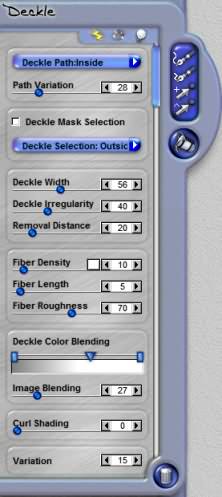
Deckle Path Direction
This menu allows you to control which side of the path it deckles. If you select Deckle Inside of Path the deckle will be shown on the inside of the path and the area outside of the path is removed. If using the Freehand Path tool you may change the Deckle Direction prior to or after drawing your path.

Path Variation
This setting randomizes the path and adds irregular deviations from the path you draw. This can be adjust before or after you have drawn your path.

Deckle Mask Selection
When this is turned on a deckle will automatically be applied to a selection if one is present. This option is useful if you want to create the selection using type or a graphic shape. Deckle will trace along the edges of the selection and apply the effect. Intricate shapes may not work well with this effect, small type or detail on a graphic may be absorbed in the deckle effect.

Deckle Selection Direction
This menu allows you to control which side of the selection it deckles on. If you select Deckle Inside of Selection the deckle will be shown on the inside of the selection and the area outside will be removed.

 
Deckle Controls

Deckle Width
This slider controls how wide the deckle shows up on the edges of your artwork. The width will not exceed the maximum range you have set this slider to. Use this tool in conjunction with the Deckle Variation slider to define the width variation range for the deckle.

Deckle Irregularity
This slider controls the variation in width that is applied as the deckle effect is generated on your image. Use this in conjunction with the Deckle Width control to define the deckle size parameters throughout the effect.

Removal Distance
After you have drawn a deckle path the effect removes pixels around the path. The Removal Distance slider determines how far out from the path pixels are removed. The higher the setting the farther deckle goes.

Fiber Density
This slider controls the amount of fiber that is shown along the edge of a deckle. Fiber is an important visual component of the effect. The denser the fiber the stronger the aspect will show up when the effect is generated.

Fiber Length
This slider controls how far the fiber strands are allowed to go both inside and outside the deckle path.

Fiber Roughness
This slider controls the coarseness of the fibers as they are rendered.

Deckle Color Blending
This control allows you to set the colors that are used to blend from the edge of the deckle inward toward the image. The color to the left represents the other edge of the deckle and the right color represents the color closest to the image. To use this control double click anywhere on the slider above the gradient to create a new gradient color control. Slide this triangle control left or right to blend the color with adjacent gradient blends. Double click on the triangle to open the color picker and change the blend color. To delete a triangle click on it and press the delete key.

Image Blending
This slider blends the image color through the deckle areas. As you reduce the slider from 100% you will begin to see the image through the deckle.

Curl Shading
This adds depth to the surface around the tear, which will be shaded and shadowed giving the image the appearance to being pulled upward or twisted by the tear.

Variation
This controls the random generation settings used to create each effect's distinctive patterns. This will change the look each time it is changed. In Deckle the Variations setting is used to generate unique placement of fibers, the height of shading of the irregular torn edge, and the Path Variation.

 
Back to Page 1HomeTutorials
 

By Joe Cilinceon, © July 24, 2002