DS
 

The Deckle filter is part of the DreamSuite 1 Set. It allows you to rip and tear your photos, type and graphics. Add deckles around any mask selection, or use the Freehand Deckle tool to craft a custom shape.

 
Deckle Example

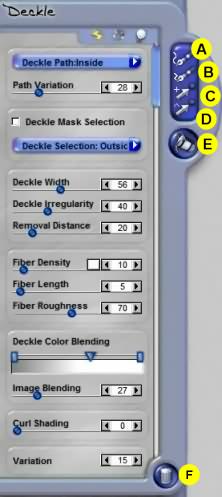
A. Freehand Path
This tool allows you to draw a path by dragging the cursor along the area you want the path to be formed. When you lift the cursor, the path is formed along the area you have traced. The deckle effect will be applied th the path once drawn.

  • The path will automatically snap together when you lift the mouse if it is close to the starting point where you begin the trace.
  • To adjust points on the path, move the cursor over the point and it will change to an Adjust Path cursor.
  • To adjust the handle of a point, move the cursor over the handle; and it will change into the Adjust Path cursor, so you can select and move the handle.
  • To move the path, place the cursor over the path, and it changes to a Move Path cursor. Click and drag to move the path.
  • To move the path, place the cursor over the path, and it changes to a Move Path cursor. Click and drag to move the path.
  • If you move the cursor adjacent to the path, it will change to a Transform Path tool that allows you to drag and transform the path length and rotation.


Crease Controls

B. Accent Tears
This tool is used to draw small tears on the edges of the deckle that you have created. To use this tool, you should start the path directly over the deckle path and move it inward in a slightly irregular direction. Once you have drawn an Accent Tear path, use the Tearing Path slider to control the width of the tear. The Path Transformation and Editing tool can adjust the Tear paths you create.

C. Add / Remove Point
This tool adds points to a path or removes existing points from a path. Move the tool over a path and click to add a new point to a path. After the point is added, select the main path tool to adjust this point as desired. To remove a point, move the tool over the point and click. Once the point is removed the path will redraw itself.

D. Convert to Corner Point
This tool converts a point into a corner point. Click over a curved point and it becomes a corner point.

E. Fill Bucket
Click this tool over any area of an image you want removed. If you draw a deckle path down the middle of a photo, only part of the photo will be removed by the deckle. Use this tool on top of the remaining areas of the photo you desire to have removed.

F. Delete Tool
Is used to delete effects, paths and ellipses. Select this tool, then click over the item you want to delete. When this tool is active, you are shown all effects ellipses and paths from all tools you have used.

 
TutorialsHomeNext Page
 

By Joe Cilinceon, © July 24, 2002