DS
 

Crease page 2


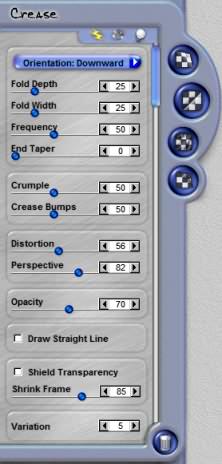
Orientation
This menu allows you to choose the orientation of Curl, Crease and Fold effects. You can choose from downward or upward orientation. You must first have a selected path then change it using this menu.

Fold Depth
This slider defines the shading depth for the Curl, Crease, Crumple and Fold tools. The higher the setting the more depth shading and distortion is applied to the effect.

Fold Width
This slider defines the width of the Curl, Crease, Crumple and Fold tools. The higher the setting, the wider and smoother the shading is applied across the effect.

Frequency
This slider adjusts the size of the wrinkles that are generated along the sides of a fold .

 
Crease Controls

End Taper
This slider reduces the fold depth near the ends of the path. Setting this control at higher amounts reduces the amount of dimple or bend that is created along the path. This is useful for creating folds in the middle of a document without having a dimple or bend generated.

Crumple
This slider controls how much of a crumple is applied to the currently selected path. This will produce slight visual effects with Curl, Crease and Fold paths and a major effect with the Crumple path.

Crease Bumps
This slider adds a slight visual enhancement to the folds and creases showing irregularities where the fold has occurred.

Distortion
This slider control defines how much the image is distorted along the crease or fold.

Perspective
This slider controls the strength of the fold and crease perspective as it bends the image.

Opacity
This slider controls the degree in which the Crease shading is seen both the image. Higher settings show more shading and add depth.

Draw Stright Line
When this is checked on, the Crease tool it will draw a straight line. Alternatively you can hold the shift key while drawing and temporarily draw with a straight line with this unchecked.

Shield Transparency
When checked the effect will only apply to the pixels on a layer and not the transparent areas. This changes how Dreamsuite applies the effect around the image.

Shrink Frame
Adjust this slider to shrink the effect in a concentric manner.

Variation
This controls the random generation settings used to create each effect's distinctive patterns. This will change the look each time it is changed. In Crease the Variations setting is used to generate unique patters for Wrinkles around each crease type, for Crumples and irregular Bumps.

 
Back to Page 1HomeTutorials
 

By Joe Cilinceon, © July 23, 2002