DS
 

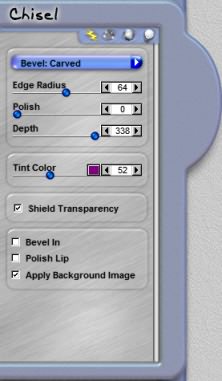
The Chisel effect is part of the DreamSuite 1 Set. It will allow you to add unique depth effects to type and graphics using specialized bevel profiles, surface maps and surface textures.

 
Chisel Example
 

Bevel Type Menu
This menu allows you to change the type of bevel depth that is applied to the chisel effect.

Edge Radius
This slider controls how sharply the chisel angle appears within the selection.

Chisel Surface Control

Polish Curvature
This slider rounds and smooths the angles of the chisel. Lower settings allow more of the chisel lines to show simulating the chisel effect.

Depth
This slider determines the height of the chisel. Increasing the value of this makes the chisel appear higher.

Tint Color
This slider and color box allows you to add a color tint across the chisel effect. The slider is used to reduce the opacity of the tint effect.

Shield Transparency
When this box is checked, the effect will only apply to the pixels on the layer and will not effect the transparent areas. Checking this option will change how DreamSuite applies the effect around a selection or on artwork on a layer.

Bevel In
When this option is checked on the bevel, it will appear to go inward instead of going out and up from the surface.

Polish Lip
When checked this option smooths the edges of the mask to remove artifacts that may prevent a smooth bevel from being formed.

Apply Background Image
When this is checked, the backround image behind the selection will show up in the preview and will also apply as part of the effect.

 
TutorialsHomeHome
 

By Joe Cilinceon, © July 24, 2002