Page 2

with Super Blade Pro


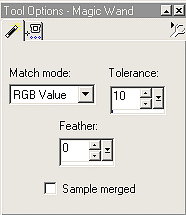
Open the xmas-bulb.gif in Paint Shop Pro 7.  Go to View/Normal size. Go to Colors/Increase Color Depth/16 million colors. Using the Magic Wand with the settings shown, click on the black line to select it.  If all the lines do not select with the first click, hold down the Shift key while you continue to click directly ON the black lines, adding to the current selection.  Make sure you are selecting ONLY the black line, and not the interior sections of the bulb.

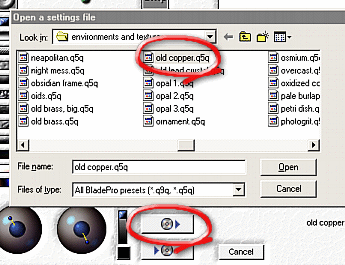
Go to Selections/Modify/Expand/ Expand by 2 pixels.  Go to Effects/Plugin Filters/FlamingPear/SuperBladePro. Apply the "old copper" preset.  

Ctrl D deselects the leaded lines.  Now, using the Shift key again with the Magic Wand with the same settings as above, click inside the white areas of the ornament top and the smaller beads in the chain.  Selections/Modify/Expand  Expand by 1 pixel.  Apply Super Blade Pro "old copper" preset again.   Ctrl D to deselect. If you would like a heavier leaded look, expand your selection by 2 pixels before applying the preset.


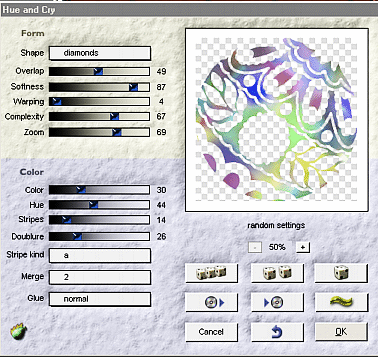
 Using the Magic Wand with the Shift key again, select the white areas that you want to become the background glass of the ornament to color as the background glass. Select/Modify/Expand - Expand by 1 pixel (this will eliminate any jaggy white edges.) Go to Effects/Plugin Filters/FlamingPear/Hue and Cry.  

Use the settings at the left to achieve a soft, swirled effect, or play with the sliders and drop-down menus till you get a color effect you prefer.  After you apply Hue and Cry, Ctrl D to deselect all areas.


Home ] Up ] Page 3 ]

Email Me!

All contents of this site are the property of Dizteq and Dizteq Net Design. © 2000 Dizteq. Unless specifically made available for download, no graphics or text may be removed from this site for any reason without express written permission from Dizteq.